[OAuth] Flutter로 Line OAuth 구현해보기
2026-01-12
Line은 국내에서 많이 쓰지는 않지만 일본에서는 많이 쓰이는 SNS 중 하나입니다.
얼마 전 회사에서 일본쪽에 앱을 출시하기 시작하여 Line OAuth를 구현해야하는 상황이 놓았습니다. 우선적으로 흐름을 파악하기 위해 다른 개발자들이 해놓은 오픈소스 결과물과 공식문서 등 여러가지를 확인해보려 했지만 국내에서는 라인 OAuth를 Flutter로 개발한 개발자 수도 많이 없었습니다.
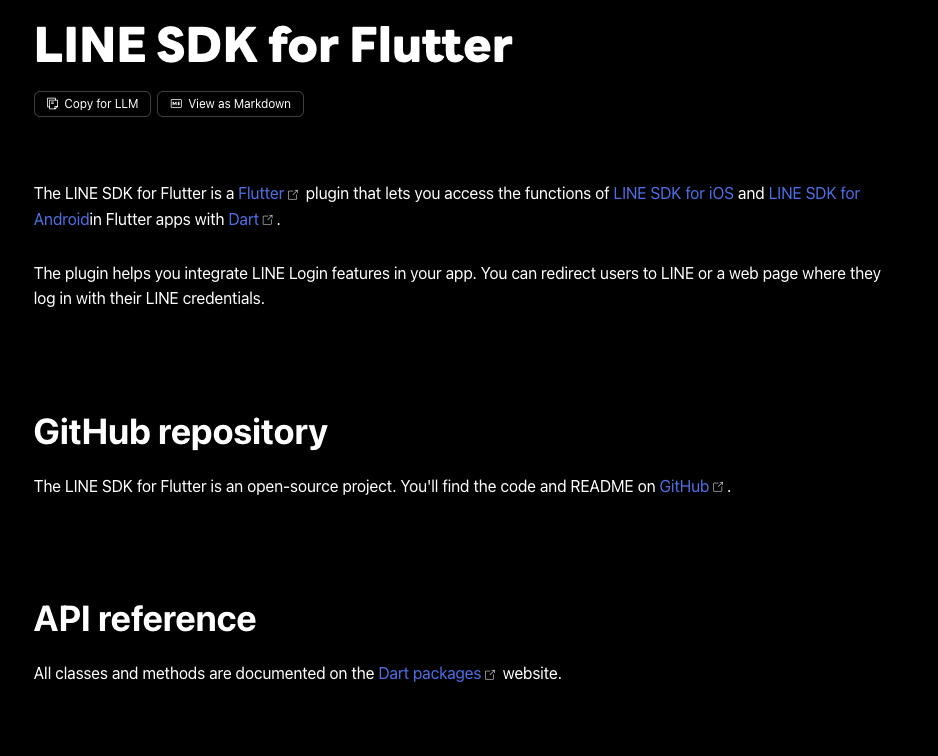
또한 라인 공식문서에서도 Flutter에 대해서는 라이브러리를 쓰라고만 하더라고요.. 라이브러리 사용도중 겪었던 문제들을 여기에 풀어보려고 합니다.
라인 로그인 키 받기
우선적으로 Kakao든지 Google이든지 OAuth를 사용하기 위해서는 api_key를 받아야합니다. api_key를 받는 이유는 이 키를 통해 그 쪽 서버에 접근하고 리소스 권한을 부여받게 함입니다.
일단 Developer Line Console에 들어갑니다.
- 우선적으로 Provider를 생성합니다.
- Channel을 만들어줍니다.
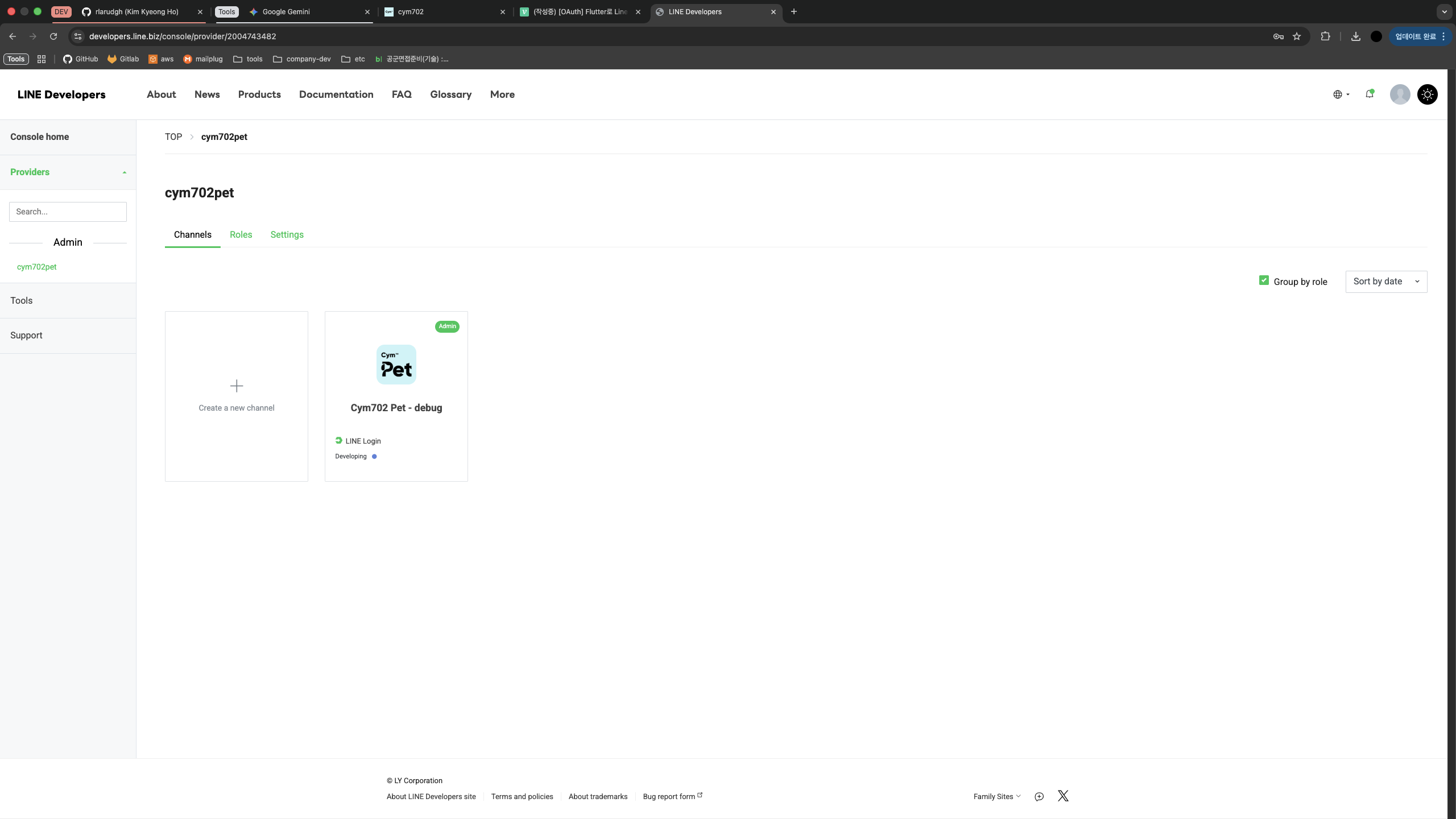
채널을 생성하면 안에 기본 설정할 것들이 있습니다.
개인정보들이 있어 따로 캡쳐하지는 않았지만 자기 상황에 맞게 설정해줍니다.
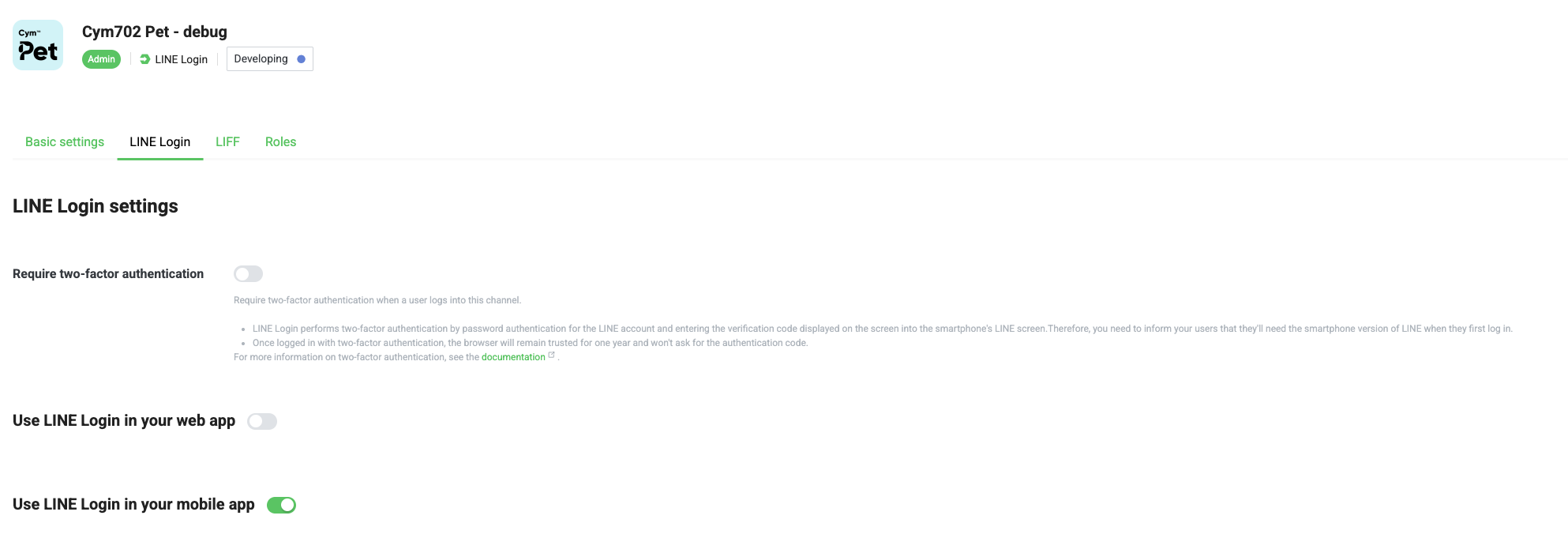
저희는 라인 로그인을 Native에서 처리할 것이기 때문에 Use LINE Login in your mobile app 부분을 활성화 시켜줍니다.
밑에는 사용하는 앱의 Package 정보를 넣으면 됩니다.
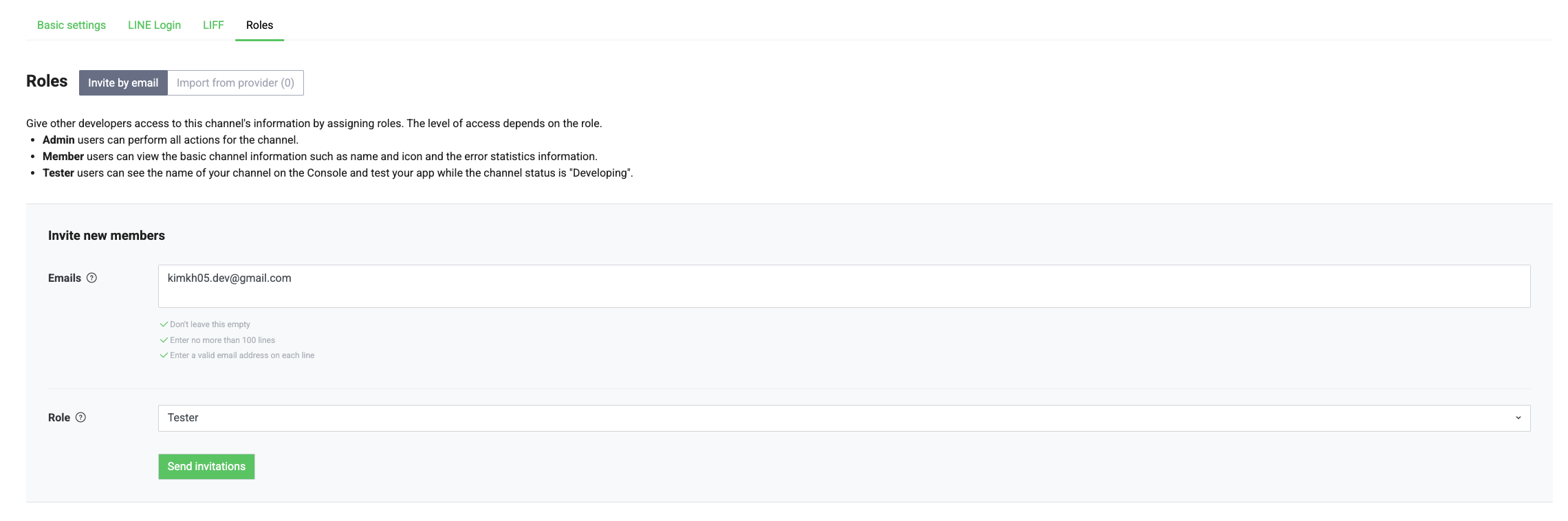
또한 테스트를 위해 테스트 계정도 여기에 추가해줍니다.
사용 기술과 아키택쳐
현재 제가 사용한 기술은 아래와 같습니다.
사용 기술
- Hybrid App (WebView + Native)
- WebView: React + TypeScript
- App: Flutter + Dart
아키택쳐
flutter_line_sdk 패키지를 사용하여 네이티브 레벨에서 OAuth를 처리하고, 결과를 WebView로 전달하는 아키텍처를 사용합니다.
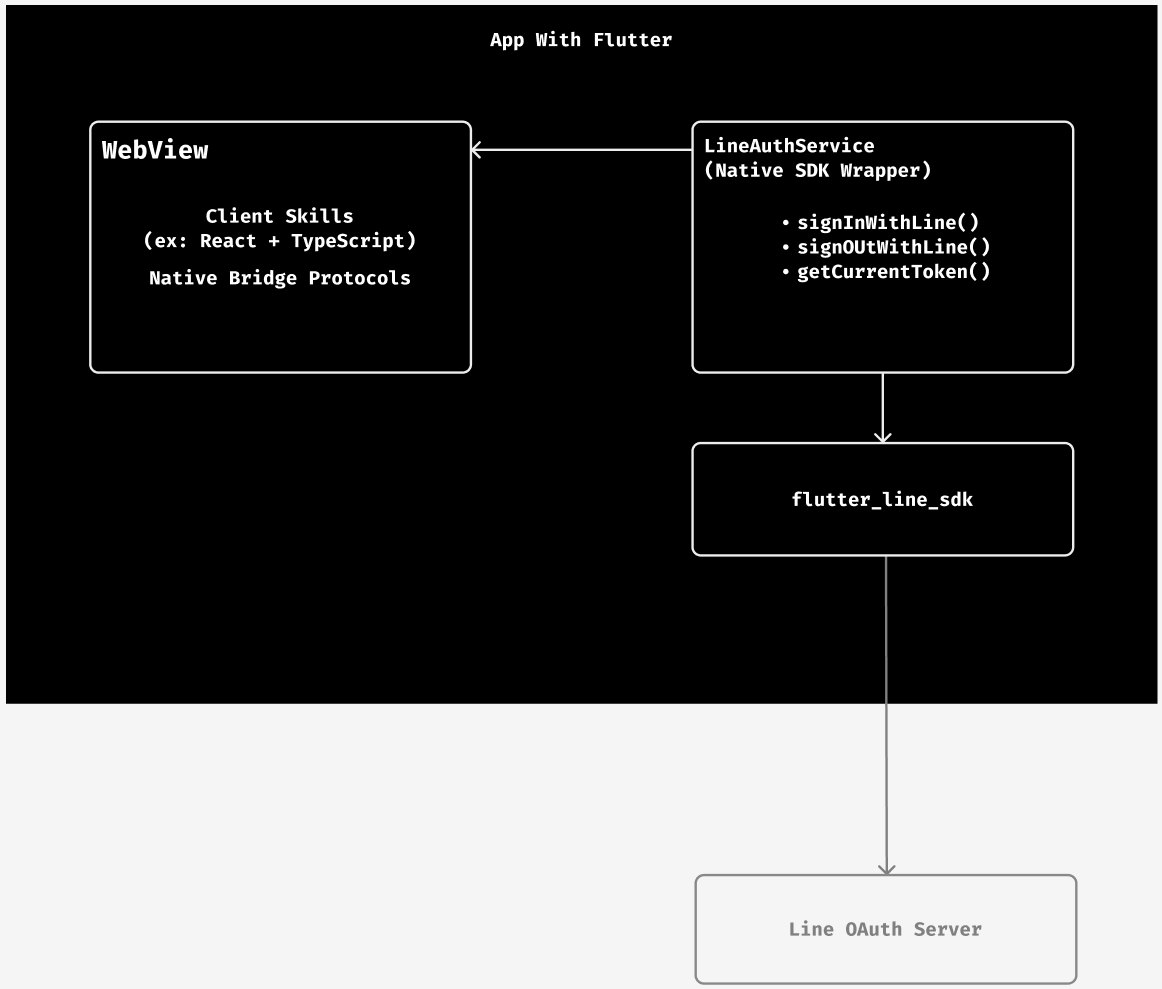
연동 방법
Line Auth Service 구축
우선적으로 라인 인증 서비스를 구축해줍니다.
lib/services/line_auth_services.dart
1 import 'package:flutter/foundation.dart';
2 import 'package:flutter_line_sdk/flutter_line_sdk.dart';
3 import 'package:flutter_dotenv/flutter_dotenv.dart';
4
5 class LineAuthService {
6   static LineAuthService? _instance;
7
8   LineAuthService._();
9
10   static LineAuthService get instance {
11     return _instance ??= LineAuthService._();
12   }
13
14   /// LINE SDK 초기화 (main.dart에서 호출)
15   static void initialize() {
16     final lineChannelId = dotenv.env['LINE_CHANNEL_ID'];
17
18     if (lineChannelId == null || lineChannelId.isEmpty) {
19       if (kDebugMode) {
20         print('❌ [LINE SDK] LINE_CHANNEL_ID is not set in .env file');
21       }
22       return;
23     }
24
25     LineSDK.instance.setup(lineChannelId).then((_) {
26       if (kDebugMode) {
27         print('✅ [LINE SDK] Setup completed successfully');
28       }
29     }).catchError((error, stackTrace) {
30       if (kDebugMode) {
31         print('❌ [LINE SDK] Setup failed: $error');
32       }
33     });
34   }
35
36   /// LINE 로그인
37   Future<LineTokenResult> signInWithLine() async {
38     try {
39       // LINE 로그인 실행 (profile, openid, email scope 요청)
40       final result = await LineSDK.instance.login(
41         scopes: ['profile', 'openid', 'email'],
42       );
43
44       final profile = result.userProfile;
45
46       if (profile == null) {
47         throw Exception('Failed to get user profile');
48       }
49
50       return LineTokenResult.success(
51         userInfo: LineUserInfo(
52           userId: profile.userId,
53           displayName: profile.displayName,
54           pictureUrl: profile.pictureUrl?.toString(),
55           statusMessage: profile.statusMessage,
56           email: null,
57         ),
58         tokens: LineTokens(
59           accessToken: result.accessToken.data['access_token'] as String,
60           expiresIn: (result.accessToken.data['expires_in'] as num).toInt(),
61           idToken: result.accessToken.data['id_token'] as String?,
62         ),
63       );
64     } catch (e, stackTrace) {
65       String errorCode = _getErrorCode(e.toString());
66       return LineTokenResult.error(errorCode, e.toString());
67     }
68   }
69
70    /// 에러 코드 분석
71    String _getErrorCode(String error) {
72     if (error.contains('CANCEL') || error.contains('cancelled')) {
73       return 'SIGN_IN_CANCELLED';
74     } else if (error.contains('NETWORK') || error.contains('network')) {
75       return 'NETWORK_ERROR';
76     } else if (error.contains('AUTHENTICATION_AGENT_ERROR')) {
77       return 'AUTHENTICATION_ERROR';
78     } else if (error.contains('PlatformException')) {
79       return 'PLATFORM_ERROR';
80     } else {
81       return 'UNKNOWN_ERROR';
82     }
83   }
84 }데이터 모델 클래스
1/// LINE 토큰 정보
2class LineTokens {
3  final String accessToken;
4  final int expiresIn;
5  final String? idToken;  // JWT 형식, 이메일 정보 포함
6
7  LineTokens({
8    required this.accessToken,
9    required this.expiresIn,
10    this.idToken,
11  });
12
13  Map<String, dynamic> toJson() {
14    return {
15      'accessToken': accessToken,
16      'expiresIn': expiresIn,
17      'idToken': idToken,
18    };
19  }
20}
21
22/// LINE 사용자 정보
23class LineUserInfo {
24  final String userId;          // LINE 고유 사용자 ID
25  final String displayName;     // 사용자 이름
26  final String? pictureUrl;     // 프로필 이미지 URL
27  final String? statusMessage;  // LINE 상태메시지
28  final String? email;          // 항상 null (이메일은 idToken에 있음)
29
30  LineUserInfo({
31    required this.userId,
32    required this.displayName,
33    this.pictureUrl,
34    this.statusMessage,
35    this.email,
36  });
37
38  Map<String, dynamic> toJson() {
39    return {
40      'provider': 'line',
41      'userId': userId,
42      'displayName': displayName,
43      'pictureUrl': pictureUrl,
44      'statusMessage': statusMessage,
45      'email': email,
46    };
47  }
48}
49
50/// 로그인 결과 (성공/실패)
51class LineTokenResult {
52  final bool isSuccess;
53  final String? errorCode;
54  final String? errorMessage;
55  final LineUserInfo? userInfo;
56  final LineTokens? tokens;
57
58  factory LineTokenResult.success({
59    required LineUserInfo userInfo,
60    required LineTokens tokens,
61  }) {
62    return LineTokenResult._(
63      isSuccess: true,
64      userInfo: userInfo,
65      tokens: tokens,
66    );
67  }
68
69  factory LineTokenResult.error(String errorCode, String errorMessage) {
70    return LineTokenResult._(
71      isSuccess: false,
72      errorCode: errorCode,
73      errorMessage: errorMessage,
74    );
75  }
76}그리고 앱 초기화 코드입니다.
lib/main.dart
1 void main() async {
2  WidgetsFlutterBinding.ensureInitialized();
3
4  // 환경변수 로드
5  String envFile = ".env";
6  if (kDebugMode) {
7    try {
8      await dotenv.load(fileName: ".env.development");
9      envFile = ".env.development";
10    } catch (e) {
11      await dotenv.load(fileName: ".env");
12    }
13  } else {
14    try {
15      await dotenv.load(fileName: ".env.production");
16      envFile = ".env.production";
17    } catch (e) {
18      await dotenv.load(fileName: ".env");
19    }
20  }
21
22  // ⭐ LINE SDK 초기화 (runApp() 전에 호출 필수)
23  LineAuthService.initialize();
24
25  runApp(const MyApp());
26}앱 환경 설정
OS별로 설정해야할 것이 있습니다.
ios/Runner/Info.plist
1<!-- LINE OAuth URL Scheme -->
2  <key>CFBundleURLTypes</key>
3  <array>
4    <dict>
5      <key>CFBundleURLName</key>
6      <string>line</string>
7      <key>CFBundleURLSchemes</key>
8      <array>
9        <!-- Bundle ID 방식: line3rdp.{BUNDLE_ID} -->
10        <string>line3rdp.com.example.app_bundle_id</string>
11      </array>
12    </dict>
13  </array>
14
15  <!-- LINE 앱 호출을 위한 쿼리 스킴 (필수) -->
16  <key>LSApplicationQueriesSchemes</key>
17  <array>
18    <string>lineauth2</string>
19 </array>android/app/src/main/AndroidManifest.xml
1<activity
2      android:name=".MainActivity"
3      android:exported="true"
4      android:launchMode="singleTop"
5      ...>
6
7      <!-- LINE OAuth Intent Filter -->
8      <intent-filter>
9          <action android:name="android.intent.action.VIEW" />
10          <category android:name="android.intent.category.DEFAULT" />
11          <category android:name="android.intent.category.BROWSABLE" />
12          <data android:scheme="line3rdp.{CHANNEL_ID}" />
13      </intent-filter>
14 </activity>그리고 환경변수도 설정해야합니다.
# .env.example
LINE_CANNEL_ID=1234567890 # 예제 값WebView 연동 (하이브리드 앱일 경우에만 사용)
Flutter에서 JavaScript Bridge Protocol로 전송합니다.
1void _handleLineLogin(Map<String, dynamic>? payload) async {
2    try {
3      final result = await LineAuthService.instance.signInWithLine();
4
5      if (result.isSuccess) {
6        _sendMessageToWeb({
7          'action': 'REQ-LINE-LOGIN',
8          'status': 'SUCCESS',
9          'result': {
10            'accessToken': result.tokens?.accessToken,
11            'idToken': result.tokens?.idToken,
12            'userInfo': result.userInfo?.toJson(),
13          },
14        });
15      } else {
16        _sendMessageToWeb({
17          'action': 'REQ-LINE-LOGIN',
18          'status': 'ERROR',
19          'result': {
20            'error': result.error,
21          },
22        });
23      }
24    } catch (e) {
25      // 예외 처리
26    }
27 }이제 웹뷰에서 받는 코드를 작성합니다.
src/shared/api/flutterBridge/flutterBridge.types.ts
1export enum FlutterBridgeAction {
2  REQ_LINE_LOGIN = 'REQ-LINE-LOGIN',
3  REQ_GOOGLE_LOGIN = 'REQ-GOOGLE-LOGIN',
4  //...
5}
6
7export interface FlutterBridgeMessage<T = unknown> {
8  action: FlutterBridgeAction;
9  payload: T;
10}
11
12export type FlutterBridgeStatus = 'SUCCESS' | 'ERROR' | 'CANCELLED';
13
14export interface FlutterBridgeResponse<T = unknown> {
15  action: FlutterBridgeAction;
16  status: FlutterBridgeStatus;
17  timestamp: number;
18  result?: T;
19  error?: string;
20}
21
22export interface LineLoginPayload { /* 필요시 추가 */}
23
24export interface LineLoginResult {
25  accessToken: string;
26  idToken: string | null;
27  userInfo: LineUserInfo;
28}
29
30/**
31 * LINE 사용자 정보
32 */
33export interface LineUserInfo {
34  provider: 'line';
35  userId: string;
36  displayName: string;
37  pictureUrl: string | null;
38  statusMessage: string | null;
39  email: string | null;
40}
41
42/**
43 * LINE 로그인 에러 결과
44 */
45export interface LineLoginError {
46  error: string;
47}src/shared/api/flutterBridge/flutterBridge.protocol.ts
1import {
2    FlutterBridgeAction,
3    FlutterBridgeMessage,
4    FlutterBridgeResponse,
5    LineLoginPayload,
6    LineLoginResult,
7  } from './flutterBridge.types';
8
9  /**
10   * Flutter Bridge 통신 클래스
11   */
12  class FlutterBridgeClient {
13    private channelName = 'FlutterChannel';
14    private isFlutterEnv: boolean;
15
16    constructor() {
17      // Flutter WebView 환경인지 확인
18      this.isFlutterEnv = typeof window !== 'undefined' &&
19                          'FlutterChannel' in window;
20    }
21
22    /**
23     * Flutter 환경인지 확인
24     */
25    get isAvailable(): boolean {
26      return this.isFlutterEnv;
27    }
28
29    /**
30     * Flutter로 메시지 전송
31     */
32    private postMessage<T = unknown>(message: FlutterBridgeMessage<T>): void {
33      if (!this.isAvailable) {
34        console.warn('[FlutterBridge] Flutter environment not available');
35        return;
36      }
37
38      const messageString = JSON.stringify(message);
39
40      if (this.isFlutterEnv) {
41        (window as any).FlutterChannel?.postMessage(messageString);
42      }
43
44      console.log('[FlutterBridge] Sent:', message);
45    }
46
47    /**
48     * LINE 로그인 요청
49     */
50    requestLineLogin(payload: LineLoginPayload = {}): Promise<LineLoginResult> {
51      return new Promise((resolve, reject) => {
52        // 핸들러 등록
53        const handler = (event: MessageEvent) => {
54          try {
55            const response: FlutterBridgeResponse<LineLoginResult> =
56              JSON.parse(event.data);
57
58            // LINE 로그인 응답인지 확인
59            if (response.action === FlutterBridgeAction.REQ_LINE_LOGIN) {
60              // 핸들러 제거
61              window.removeEventListener('message', handler);
62
63              if (response.status === 'SUCCESS' && response.result) {
64                console.log('[FlutterBridge] LINE Login Success:', response.result);
65                resolve(response.result);
66              } else {
67                console.error('[FlutterBridge] LINE Login Error:', response.error);
68                reject(new Error(response.error || 'LINE login failed'));
69              }
70            }
71          } catch (error) {
72            console.error('[FlutterBridge] Failed to parse response:', error);
73          }
74        };
75
76        // 메시지 리스너 등록
77        window.addEventListener('message', handler);
78
79        // Flutter로 로그인 요청 전송
80        this.postMessage({
81          action: FlutterBridgeAction.REQ_LINE_LOGIN,
82          payload,
83        });
84
85        // 타임아웃 설정 (30초)
86        setTimeout(() => {
87          window.removeEventListener('message', handler);
88          reject(new Error('LINE login timeout'));
89        }, 30000);
90      });
91    }
92  }
93
94  // 싱글톤 인스턴스
95 export const flutterBridge = new FlutterBridgeClient();src/feature/auth/line-logi/model/useLineLogin.ts
1import { useState, useCallback } from 'react';
2import { flutterBridge } from '@/shared/api/flutterBridge/flutterBridge.protocol';
3import type { LineLoginResult } from '@/shared/api/flutterBridge/flutterBridge.types';
4
5interface LineLoginState {
6  isLoading: boolean;
7  error: string | null;
8  result: LineLoginResult | null;
9}
10
11export function useLineLogin() {
12  const [state, setState] = useState<LineLoginState>({
13    isLoading: false,
14    error: null,
15    result: null
16  });
17
18  const login = useCallback(async () => {
19      setState({
20        isLoading: true,
21        error: null,
22        result: null,
23      });
24
25      try {
26        console.log('[useLineLogin] Starting LINE login...');
27
28        const result = await flutterBridge.requestLineLogin();
29
30        console.log('[useLineLogin] LINE login successful:', result);
31
32        setState({
33          isLoading: false,
34          error: null,
35          result,
36        });
37
38        return result;
39      } catch (error) {
40        const errorMessage = error instanceof Error
41          ? error.message
42          : 'Unknown error occurred';
43
44        console.error('[useLineLogin] LINE login failed:', errorMessage);
45
46        setState({
47          isLoading: false,
48          error: errorMessage,
49          result: null,
50        });
51
52        throw error;
53      }
54    }, []);
55
56    const reset = useCallback(() => {
57      setState({
58        isLoading: false,
59        error: null,
60        result: null,
61      });
62    }, []);
63
64    return {
65      ...state,
66      login,
67      reset,
68    };
69 };해당 페이지에서 위 작성한 코드들을 사용합니다.
src/pages/login/ui/login-page.page.tsx
1import { FC, useState } from 'react';
2  import { LineLoginButton } from '@/features/auth/line-login';
3  import { LineLoginResult } from '@/shared/api/flutterBridge/flutterBridge.types';
4  import { authApi } from '@/shared/api/authApi'; // 서버 API
5
6  export const LoginPage: FC = () => {
7    const [user, setUser] = useState<LineLoginResult['userInfo'] | null>(null);
8
9    const handleLineLoginSuccess = async (result: LineLoginResult) => {
10      console.log('LINE Login Success:', result);
11
12      try {
13        // 서버로 토큰 전송
14        await authApi.sendLineTokenToServer({
15          accessToken: result.accessToken,
16          idToken: result.idToken,
17          userInfo: result.userInfo,
18        });
19
20        setUser(result.userInfo);
21      } catch (error) {
22        console.error('Failed to send token to server:', error);
23      }
24    };
25
26    const handleLineLoginError = (error: string) => {
27      console.error('LINE Login Error:', error);
28
29      // 에러 메시지 표시
30      if (error.includes('SIGN_IN_CANCELLED')) {
31        // 사용자가 취소
32        console.log('User cancelled login');
33      } else {
34        // 다른 에러 처리
35        alert(`로그인 실패: ${error}`);
36      }
37    };
38
39    return (
40      <div className="min-h-screen flex items-center justify-center bg-gray-50">
41        <div className="max-w-md w-full bg-white rounded-lg shadow-md p-8">
42          <h1 className="text-2xl font-bold text-center mb-8">로그인</h1>
43
44          {!user ? (
45            <div className="space-y-4">
46              {/* LINE 로그인 버튼 */}
47              <LineLoginButton
48                onLoginSuccess={handleLineLoginSuccess}
49                onLoginError={handleLineLoginError}
50                className="w-full bg-green-500 hover:bg-green-600 text-white py-3 px-4 rounded-lg font-semibold"
51              />
52
53              {/* 다른 소셜 로그인 버튼들... */}
54            </div>
55          ) : (
56            <div className="text-center">
57              <img
58                src={user.pictureUrl || '/default-avatar.png'}
59                alt={user.displayName}
60                className="w-20 h-20 rounded-full mx-auto mb-4"
61              />
62              <h2 className="text-xl font-semibold mb-2">
63                {user.displayName}님 환영합니다!
64              </h2>
65              <p className="text-gray-600 mb-4">{user.statusMessage}</p>
66            </div>
67          )}
68        </div>
69      </div>
70 );성공 시 오는 데이터는 아래와 같습니다.
1 {
2    "action": "REQ-LINE-LOGIN",
3    "status": "SUCCESS",
4    "result": {
5      "accessToken": "XAx8j3...",
6      "idToken": "eyJhbGciOiJIUzI1NiJ9...",
7      "userInfo": {
8        "provider": "line",
9        "userId": "U1234567890",
10        "displayName": "홍길동",
11        "pictureUrl": "https://profile.line-scdn.net/...",
12        "statusMessage": "안녕하세요!",
13        "email": null
14      }
15    }
16}위 코드를 통해 웹뷰 배포 및 사용을 하시면 정상적으로 작동하실겁니다.
글 읽어주셔서 감사합니다.
출처
- Claude Code